Internal guide
How to post jobs on the BBN website.
Use this page when adding, updating, closing, or removing public Beach Baby Nannies job listings.
Quick version
- Jobs are WordPress Posts. Do not edit the Jobs page itself.
- Start from a sample job template when possible, then edit the visible text.
- Set the right categories: Jobs, role, location, schedule, and status.
- Use a featured image for the job-card photo.
- Keep the excerpt short because it appears on the job board card.
Where to work
Use Posts, not Pages.
Job listings live under Posts. The public job board at /jobs/ automatically pulls published posts in the Jobs category, along with their featured image, excerpt, categories, and status.
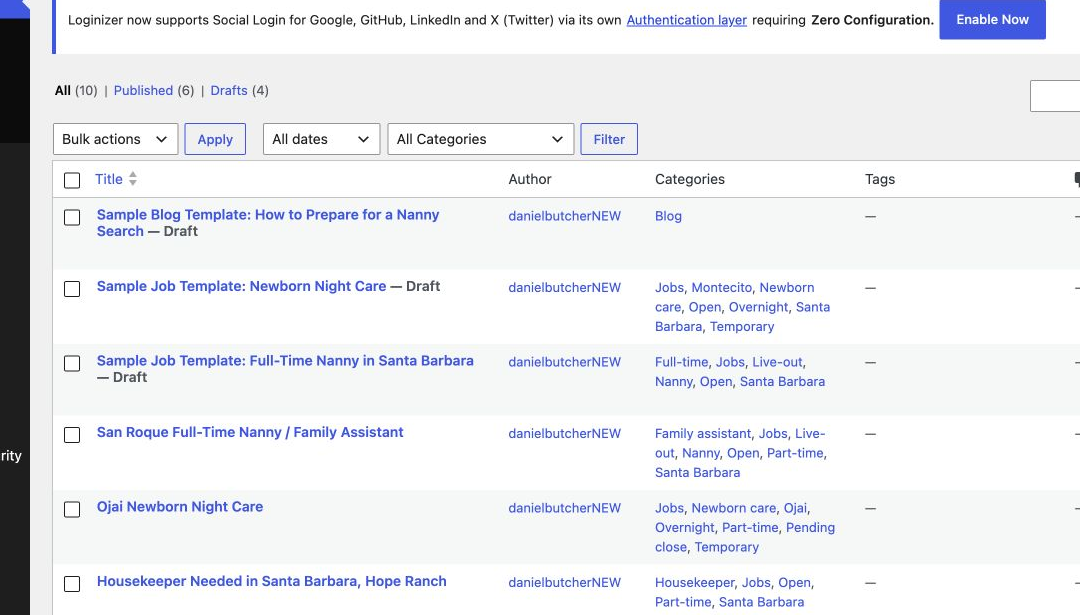
Add a job
Start from a sample template.
- Open a draft sample job template, such as Sample Job Template: Full-Time Nanny in Santa Barbara or Sample Job Template: Newborn Night Care.
- Hover over the closest sample template and click Clone. Open the copied draft, then replace the sample text with the new job details.
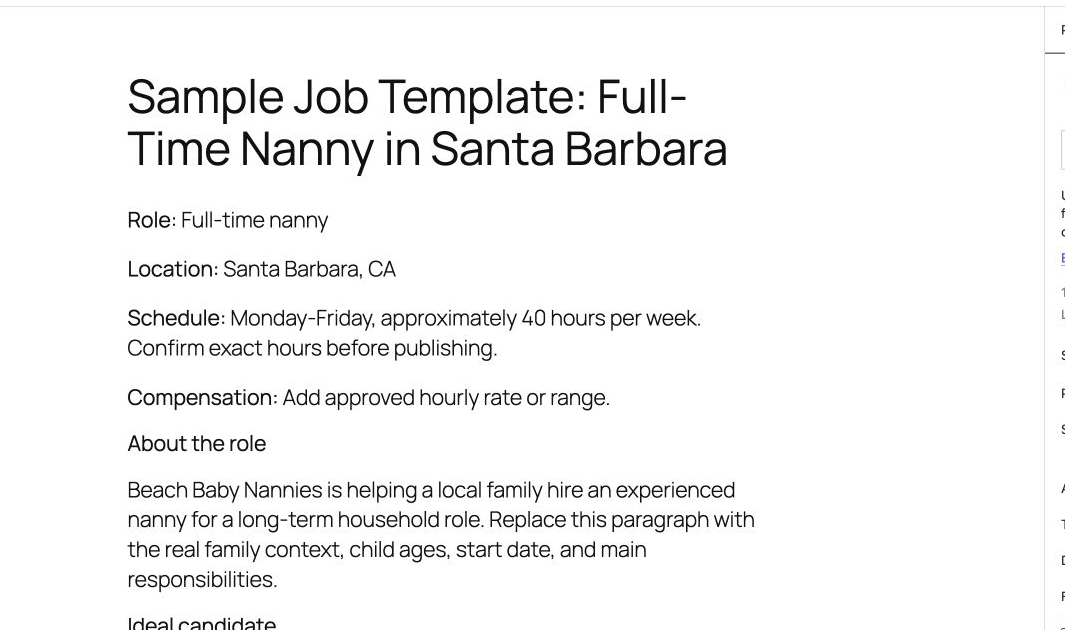
- Update the title, summary, job code, facts, duties, ideal candidate bullets, and apply section.
- Save as draft while editing. Publish only when the role is ready to appear publicly.
Post settings
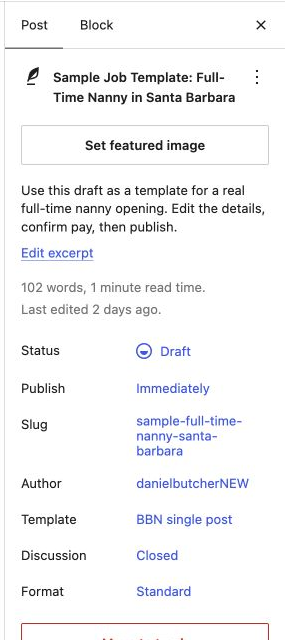
Set image, excerpt, status, and categories before publishing.
Open the Post settings sidebar. This is where the job board gets most of its card information.
- Featured image: controls the job-card photo.
- Excerpt: controls the short card summary.
- Status: keep as Draft until ready, then Publish.
- Categories: set Jobs, role, location, schedule, and one status.
Categories
Every job needs the right category set.
- Jobs: required for the post to appear on the job board.
- Job Role: Nanny, newborn care, housekeeper, family assistant, household manager, estate manager, private chef, or personal assistant.
- Job Location: Santa Barbara, Montecito, Ventura, Ojai, Camarillo, Thousand Oaks, Calabasas, or another approved location category.
- Job Schedule: full-time, part-time, temporary, on-call, live-in, live-out, or overnight.
- Job Status: choose one status only.
Coming soonOpenPending closeFilled
Images and excerpts
The card should be short and easy to scan.
- Featured image: appears at the top of the job board card and the job detail page.
- Alt text: keep it simple, such as Nanny job image for Montecito full-time nanny role.
- Excerpt: use 1-2 sentences. If the job card looks too long, shorten the excerpt first.
Closing jobs
Change status instead of deleting.
- Pending close: use when the role should stay visible but is no longer actively taking many new candidates.
- Filled: use when the role is closed but can remain visible as recently filled.
- Draft: use when the job should disappear completely from the public board.
Pre-publish checklist
Check these before publishing.
- Title is clear and public-facing.
- Job code is included.
- Compensation and schedule are correct.
- Schedule categories do not contradict the title.
- Status category is correct.
- Featured image is set.
- Excerpt is short.
- Apply buttons still work.
- The post is in the Jobs category.